Service Area – Set the distance you will travel for inspections
Managing your Profile
Click on the Profile tab. You’ll see a preview of what visitors will see when viewing your profile. At the bottom of this screen you’ll see your visibility settings which are explained later.
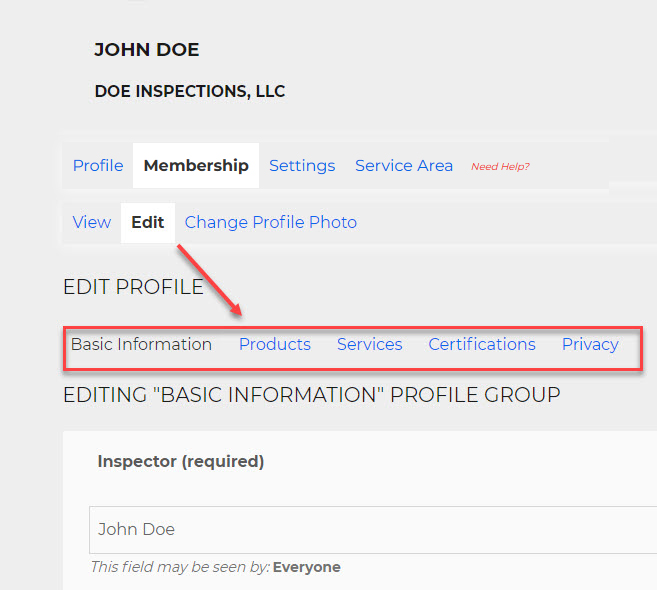
To update your information, click on the Edit tab. You’ll see a list of sub pages for managing different types of profile data.
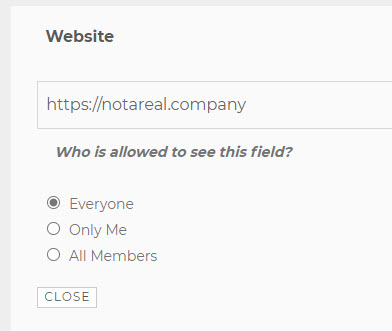
Some fields have visibility rules you can set. If you see “This field may be seen by”, this means you can change who can see this field – only you, only other members, or everyone.
The Privacy tab allows you to further control what information you show to other people, including:
email address
location – full address, city+state, or nothing
The ability to completely hide your listing from the inspector search.
The Change Profile Photo tab allows you to upload a personal or company photo to display on your page. You have the option to upload a file from your computer, or use your phone’s camera to take a selfie. Once a photo is uploaded, you can drag the dotted lines around to crop the photo to your liking.
Managing your nICFI Subscription
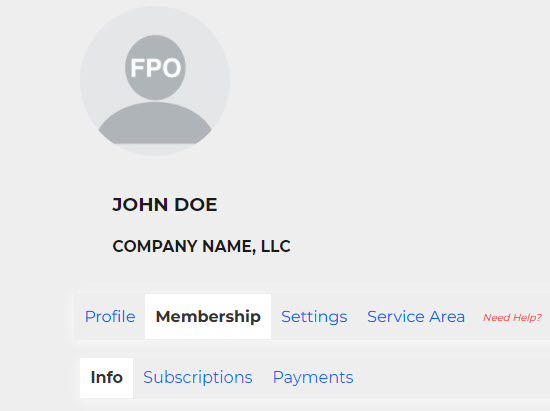
Click on the Membership tab. The first tab, Info, is where you can update your billing information. Note that we use the address you put here as the address for your public profile.
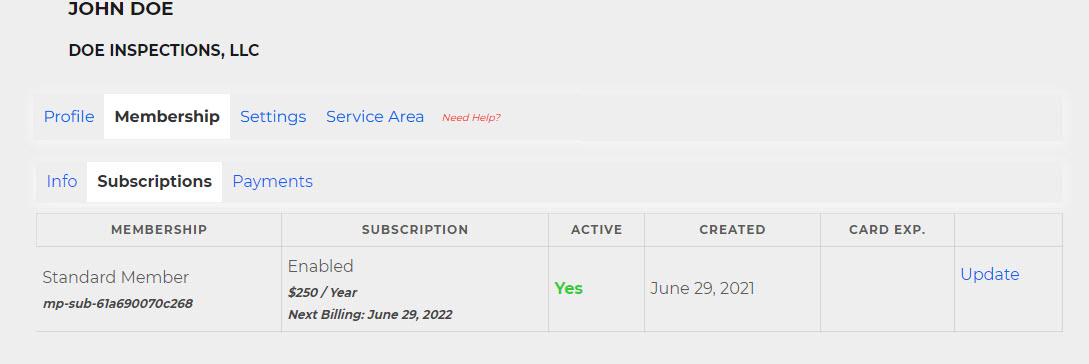
The Subscriptions tab lets you see your current and past membership subscriptions. You can also update your credit card here, in case it expires before your next billing date.
Note that NICFI does not store your credit card data! This is done by a third party, and aside from the expiration date, we cannot access your payment information.
The Payments tab is where you can see your payment history.
Changing Email or Password
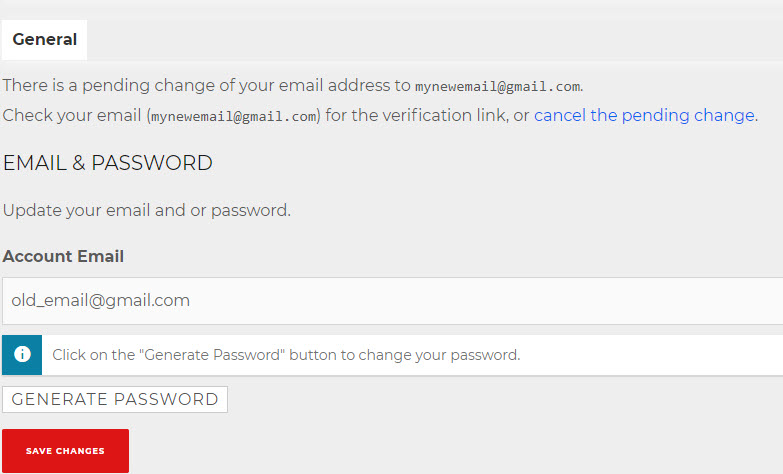
Click on the Settings tab and complete the form shown.
Note that if you are changing your email address, we will send you an email with a link in it. You will need to click that link. Your email will not be updated until the link in that email is clicked!
Service Area
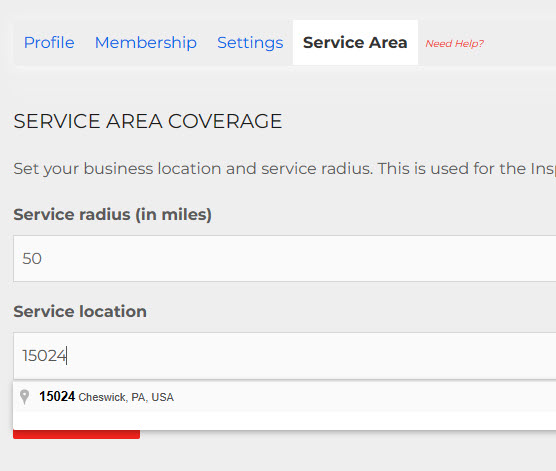
Click on the Service Area tab to change your service radius and base location.
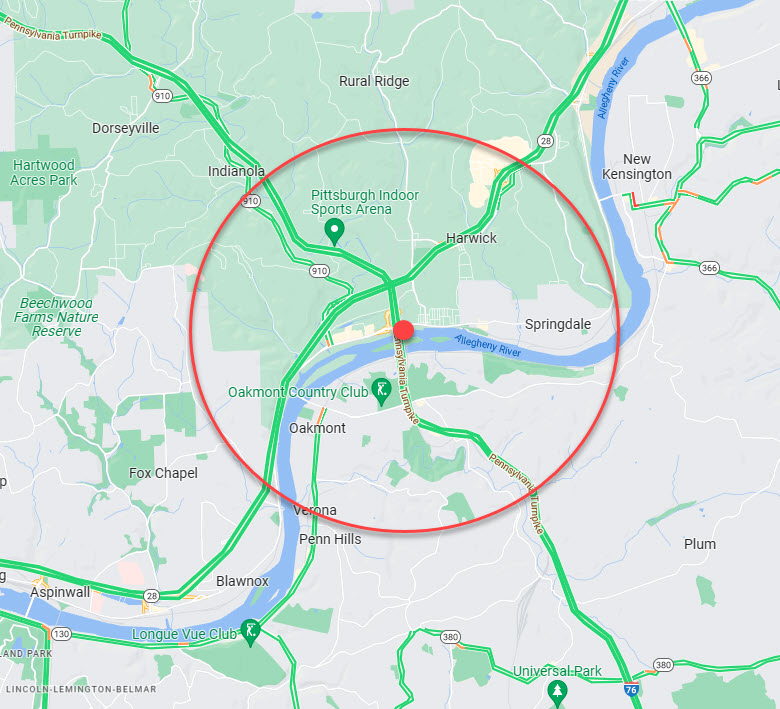
You can use City/State combination, or Zip Code to set a starting point. Google then uses that point as the center of your service radius.
Example:
You are in Cheswick PA and set a Service Radius of 25 miles.
Someone in Pittsburgh PA searches for inspectors near them.
Cheswick is less than 25 miles from Pittsburgh, so you would be shown.